Critical Making 1: Finding Your Superpower Through Digital and Physical Making

Critical Making 1 is a first semester project-based studio course that provides a foundation in the creative process of making with new and emerging digital and physical technologies responsible for building the products and services shaping the world we live in.
In this course students work towards becoming fluent with digital and physical tools and technologies supporting their creative visions for new products and services. This includes working with modern web technologies (languages, frameworks, API’s) to produce functional prototypes, surveying Computer-Aided Design (CAD) tools for 3D modeling and visualization and leveraging digital fabrication tools (3D Printing, Laser Cutting, CNC Milling) to rapidly produce physical objects and prototypes.
The course will culminate in a final project leveraging the various digital and physical tools, techniques, skills, and knowledge gained throughout the semester. Project examples include web-based applications, connected experiences, smart devices, everyday / enchanted / functional objects, media-based installations, and product-based experiences.
Day and Time:
APRD-5005-003 / AM Section - Monday, 9:30 am - 12:30 pm
APRD-5005-001 / PM Section - Monday, 1:30 pm - 4:30 pm
Location:
We have adopted a hybrid (remote/in-person) class structure this semester due to COVID-19. This means anyone can participate in person or virtually over Zoom anytime. The class schedule will indicate when class is to be held in person at the Studio or virtually over Zoom. The following Zoom link is to be used for all class sessions. The required password is provided in Slack.
>> Zoom Meeting (Password Required) <<
Instructor:
RJ Duran
rj.duran@colorado.edu
Slack: @rjduran. #cmstudio on cmcistudio.slack.com
Office hours by appointment. Feel free to reach out to me via slack or email.
Syllabus:
This website is a real-time version of the course syllabus. It is updated weekly throughout the semester. A static version can be downloaded here.
Course Resources
This website is the primary resource for all Critical Making Studio courses. Some of the resources used across the different courses are divided up into sections found on the left sidebar. Course specific resources will be found within the course schedule page specific to each course, also found on the left sidebar.
Do I need to know all of these tools? No! Think of these resources as maps containing many possible tools that could help you accomplish your work and from which you can choose some to learn and work with. There are pros and cons to any tool and all have a set of functionalities and a purpose. As with any tool and any kind of personal creative process you are free to choose anything that works for you.
In addition to the tools found here in the digital space, you have access to physical tools for building anything you can imagine here at the studio, on campus at the Idea Forge, or in the community at BLDG61.
IMPORTANT: In this time of COVID-19, be sure to investigate any policies and regulations for all campus based or non-CU based resources before using them. Be safe.
Our Studios
CMCI Studio facilities include the large main room (West Studio) and adjacent smaller room (North Studio). Both rooms contain different functionalities for developing projects at varying scales and for varying audiences. Read through the Studio Handbook for learning about each room and accessing the various tools and capabilities we have on site.
CMCI Equipment Resources
CMCI has a large collection of media production equipment for students to use. The Armory Vault and ENVD Checkout reservation systems have many items for general purpose use. With each system there are conditions that must be met. Visit each page to learn more. Learn more about all the on campus resources available at https://www.colorado.edu/facilities/cmci-equipment/.
Idea Forge
The Idea Forge is an on-campus design and fabrication facility open to all students located in the Fleming Building (near the Wolf Law Building at Broadway & Baseline Rd). In this course we will be making use of the tools and resources available to build projects and develop skills. Learn more at https://www.colorado.edu/ideaforge/.
BLDG61: Boulder Library Makerspace
BLDG 61 is a free community workshop that provides maker education and technology to the public in a creative and inclusive environment. They are located nearby, just down the street from our studio. They offer a variety of free workshops and access to tools and knowledge within the larger Boulder community. I highly recommend becoming familiar with their space. Learn more at https://boulderlibrary.org/bldg61/.
Course Workload
- The CM1 is a 3 credit hour course. You should expect to dedicate at least 2-3 hours per credit hour. This translates into a 6-9 hours per week. Consider 6 hours a minimum expectation for one studio course and plan accordingly with your other studio courses.
- Assignments for the course consist of weekly blog posts demonstrating project-based and process oriented research and explorations in making. Assignment parameters will be based on the topic of the week and "due" the following week by the start of class time. Refer to the Course Deliverables section for more information.
- The course is organized into weekly meetings consisting of instructor led project-driven topics organized as workshops and studio work sessions. It is expected that all students are active participants in each session.
Course Deliverables
CM1 is a project based course and largely driven by student research and interests. As such, each deliverable is expected to vary based on the project parameters and requirements. The following outlines the general criteria for course deliverables throughout the semester.
Assignments
- Assignments are given weekly and need to be submitted as a blog post published to your Critical Making blog. A minimum of 1 blog post per week is the expectation.
- Medium is widely used in other studio classes but any blogging platform may be used.
- Posts are to be submitted via slack #cmstudio by the specified due date each week.
- It is recommended that a post includes a variety of media and content to support the subject matter. For example: text, images, video, graphics, photos, mockups, screen captures, tutorials, 3d model viewers (sketchfab), sketches, code, gifs, references, etc. Anything that is required to effectively communicate the details of a project, process, prototype, or idea.
- The subject matter is in response to the topics of the week. Ideally, it falls in line with your interests, research area, project, creative process, etc. For example, you might consider doing a series of tutorials on a topic that interests you or a process/workflow you are currently exploring through the course.
- Posts should be written to the best of your abilities and for a public audience. The post and any accompanying visual content (images, video) may be shared on social media.
Final Project
- Final Project Proposal (Submitted as a blog post)
- Final Project Presentation (Delivered live or as pre-recorded presentation)
- Final Project Documentation (Submitted as a blog post)
Course Themes
- Building Creative Habits and Practices
- Emerging Tech
- Rapid Prototyping
- Product Development
- Materials
- Digital Fabrication
- Interactive and Immersive Digital / Physical Experiences
- Parametric Modeling and Design
- Visualization / Rendering
- Deconstructing Problems and Solutions
- Analyzing Systems of Logic
Phase 1: Make Everyday

Week 1: Overview
Aug 28 (Friday) | Location: In Person + Zoom Meeting
- Intros / Course Overview
- CM1 Student Questionnaire
- Making "making" a practice (aka Dailies, Everydays)
- Jonathan Harris - Today - Cowbird
- onepic_everyday by Allison Spiegel (C10)
- Beeple Everydays
- Things Organized Neatly
- Significant Nonsense
- 1 Second Everyday App
- Collecting Words by Brian Fouhy (C3)
- Getting Creative with Perlin Noise Fields
- House Numbers Styles
- Things Come Apart by Todd McLellan
- Codevember
- 52 Boxes in 52 Weeks
- CW 365 Days of OP-1
- Methodologies for "making"
- Books
- Got Skills?
Processing Workshop
We will go through a process of creating a simple poster sized 24x36 in using the Processing IDE.
- Download and Install Processing
- Sketch (Instructions on slides)
Resources
- Processing Language Reference
- Learning Processing
- Visualizing Data: Exploring and Explaining Data with the Processing Environment
Finding Inspiration
Where do you find inspiration? Here are a few I frequent.
- MIT Technology Review
- Creative Applications
- Bantam Tools Podcast: The Edge - A great podcast about design and technology.
- CW&T / Instagram
- Instructables
- Radiolab
- Sleepwalkers Podcast - A podcast about AI, Machine Learning, Data, and Privacy.
- Creative Industries
- HardwareUX
- pdesign101
- Age of Entanglement by Neri Oxman - An outstanding article and map / chart (The Krebs Cycle of Creativity).
- Tim Rodenbroeker - Input / Output Map
- Bauhaus Curriculum / Bauhaus || The School of Everything
- Designspiration
- The Coding Train
- Kurt Vonnegut on the Shapes of Stories (long version) / Kurt Vonnegut on the Shapes of Stories (short version)
- Four Tet: Looking Backward, Moving Forward
- Shapeways Material Guide
- McMaster Carr - TONS OF PARTS
Assignment 0: Setup a "maker" blog
Setup a dedicated blog to document your Critical Making experience.
What if I already have a website/blog? Great! Just make sure you tag or categorize your posts with "Critical Making 1" so they are easy to locate.
If you do not yet have a blog or wish to setup a dedicated site for this course, you have a plethora of options to choose from. Feel free to use whatever works for you to submit your work in blog post format. Many STCM students choose to use Medium because it's used to submit posts for RE Studio.
Examples by previous students:
Clayton Kenny (C11), Yvonne Danyluck (C11), Dave Laskowski (C11), Aitana Rothfield (C11), Gia Almuaili (C11), Tess Stevens (C11),Karen McClellan (C10), Allison Speigel (C10), Jonas Escobedo (C10), Sarah Cohen (C10), Diamond Alexander (C10), Kelly Phillips (C10), Hanshu Zhou (C10), Sarah Safranski (C9), Jim Murphy (C9), Matt Isola (C9), Nikki Cavalier (C9), Nick Balderston (C9)
Examples of similar blogs:
Chikara Inamura (HTMAA 2014), Matt Keeter (HTMAA 2011), Christos Tzamos(HTMAA 2014), Zach Seibold (HTMAA 2014), Merav Gazit (HTMAA 2014), Dorota Orlof (FAB Academy 2018 Barcelona)
Assignment 1: Know thyself
Your first assignment consists of 2 parts:
Part 1: Make a map
Generate a map of some kind that communicates your journey to CMCI Studio. Such a map might be a timeline, visualization, info graphic, mind map, photographic series, video, written document, or any combination of these formats. Include your interests and pursuits in CMCI Studio.
Questions:
- What led you to CMCI Studio?
- What is your question?
- Based on the survey, what do you feel strong in and what are you excited to learn more about through this course?
- Where do you see yourself by the end of the program?
- If you could design and build anything, what would it be?
Resources
Part 2: Things I Like & Dislike
Choose 3 things you like (or love) and 3 things you dislike (or hate) and describe what they mean to you and why. Possible choices might be products, objects, artifacts, or experiences. Be wary of pointing out behaviors in people or circumstances beyond your control or judgement. Focus on the tangible attributes that you can clearly articulate.
Questions:
- What’s their story?
- Who made them and why?
- Why do or did they exist?
- Why do you find them intriguing or despise them?
Deliverable:
Write and submit a blog post for Part 1 and Part 2 on your blog. Include any media in your post that supports your thoughts and ideas. Share a link to your post on Slack #cmstudio by Sept 7 (Labor Day).
Due: Sept 7
Week 2: Tools for Development
Aug 31 | Location: Zoom Meeting
Today in class we will be working on setting up software and becoming familiar with some of the tools used for development.
- Questions
- Assignment #2 begins today
- Class Format over Zoom
- Break out rooms?
- Setting up your development environment
- What's that and why do we need it?
- What does a development environment look like?
- IDE's vs Text Editors, working
codefolder, Terminal, Node.js, NPM, Version Control. - The combination of all these tools is what I refer to as a "sandbox" or local development environment.
- Terminal Workshop
- Hello Terminal
- Basic folder navigation and file creation
- Moving From Bash to Zsh: Terminal Changes in macOS Catalina
- Showing hidden files on your system
- "dot" files (aka a file with a dot or period at the beginning of it's filename is a hidden file)
- Install Git
- Hello Terminal
- Github Workshop
- Version Control (aka a time machine for code/data)
- Setup Github account
- Create your first repo
- Markdown
- Demo: Local development environment
- Reference: Make a Sandbox (aka local dev server environment)
- Code: The Hidden Language of Computer Hardware and Software
- ASCII vs Binary Files
- ASCII - Data for a human to read/write
- Binary - Data for a computer to read/write
Development Environment
Lets get started by setting up a development environment. The most basic things you need for any web development tasks are a text editor and a browser like Chrome, Safari, or Firefox. Other tools such as the Terminal, Git, Github, and Node.js enable you to work with all sorts of libraries and frameworks, collaborate with others, and quickly prototype new ideas. All these tools come together under the idea of running a "local development server" or localhost on your machine. We will be setting up all these parts and will utilize them in different ways over the course of the semester.
If you are curious about the history of electronics, computers, computer science, programming, and the Internet, check out the Histories section. I strongly advise you to start getting familiar with the various histories and technological underpinnings of the technologies you use every day. Remember, it's also about building awareness and understanding about the systems that run our world. These resources are meant to work through at your own speed and as you begin to ask deeper questions about why something works and how something works.
I also highly recommend the book Code: The Hidden Language of Computer Hardware and Software by Charles Petzold. It is a foundational text on why computers are the way they are and how they work, beginning with code.
Text Editors
- What is a text editor?
- What is it's purpose?
- How is it useful for development?
When it comes to web development or software development work, you need a text editor capable of working with ASCII data and rich in features supporting development tasks. My editor of choice is currently Visual Studio Code (VSCode).
Will Microsoft Word, Google Docs, or Pages work? No! These are word processing applications that deal primarily with binary data because in addition to the actual text information stored in a .doc file, it encapsulates data such as font and formatting. Don't use these editors for this kind of work. You will be sad.
Terminal Workshop
- What is the Terminal?
- What is it's purpose?
- How is it useful for development?
Goals:
- Get familiar with the terminal by creating and manipulating files and folders on your system.
- Set up git to be able to use version control to manage projects on Github.
Terminal 101
- Location on MacOS: Applications/Utilities/Terminal.app
- For the Windows users: Cmder is a Terminal emulator that works in a similar way to the mac terminal.
- How to display hidden files on MacOS
- Customize your Terminal in Terminal > Preferences. It helps to make the text larger on most screens.
- Common commands:
cd, ls, mkdir, rmdir, rm, mv, cp, pwd, man, touch. Think of all these commands as tiny applications that have no GUI. They are very old and have been around since the start of Unix based systems (Read this to learn more: Looking back at OS X's origins). Look at MacOS/Linux/Unix Command Line Cheat Sheet to see more information about common commands. - Working with directories and files:
cd <folder>- Goto into a foldercd ..- Go up one levelcd ../<folder>- Go up one level (to parent folder) and into a child foldercd ../..- Go up two levels etc- Tab completion - When you start typing in a terminal you can hit tab to complete the command if the file or folder you are going to use is available. If you hit Tab twice, you will see the contents of a folder.
- Getting out of or killing a process that is running in Terminal:
ctrl + c
Install Git
You will likely not have Git installed on your machine by default. You will know if you have it or not when you type git into the Terminal. If you do have it installed you will see information about how to use it. If you don't, you will see the output "command not found".
You may be prompted to install XCode Developer Tools when installing git. Accept the install and proceed. You have two options to install git: Install the XCode Developer tools (easy way) or download the installer from git-scm.
After installing it the git command should work in the Terminal. This is essential to working with Github.
Resources
- Learning Terminal - Cheetsheets and more!
- Learning Git
- How to use Terminal on Mac, How to use a Terminal on Windows
- Command Line Cheat Sheet by git-tower - This one is great for both git and terminal commands!
Github Workshop
Goals:
- Setup a Github account
- Create your first repository
- Publish some code to it
How to Use Github
- Sign up for a Github account. Choose a username wisely. You might just be "Internet famous" someday. (Stuck on choosing a username? Read this. A Tale of Github Usernames)
- Create a hello-world repo on Github. If you check the box to add a README file it will include a README.md file in the repo. This is the main information file shown when you goto the repo URL
- Markdown = text file with special syntax that gets converted into HTML. Review Markdown Cheatsheet.
- Complete list of github markdown emoji markup
- Clone your repo using the terminal. Doing this will download a copy of your repository onto your machine.
- Clone Repo:
git clone <repo url>. For Example,git clone git@github.com:rjduran/cm-sandbox.git. Note the URL and its use of "git" or "https". Use "https" to start. You need to go through the Github tutorial below in step #4 to connect to Github via SSH. - Open VSCode and add the cloned folder to the workspace
- Make some changes to your README.md file using VSCode
- Stage the changes:
git add .orgit add README.md - Commit the changes:
git commit -m "my message describing changes" - Push the changes:
git push - You will be asked for your username and password when attempting to push changes to your repo at this stage.
- Once the changes are uploaded you will see the changes on the Github page for the repo. Yay! Good times! Success!
- Clone Repo:
- Pro tip: After setting up your Github account, read through Connecting to Github with SSH to setup your system to connect securely to Github and not require you to enter your username and password credentials each time you push changes.
Assignment 2: Everyday Project
Objective: Make something and capture a digital representation of it each day for the next 2 weeks. You should have at a minimum 14 objects.
Thoughts on how to accomplish this:
- Choose any tool(s) at your disposal.
- Choose any theme or topic.
- Date Range: Monday Aug 31 to Monday Sept 14
- Decide how you will document your project. For example, Instagram, blog post, a single image, a document, a Github repo commit, a video, etc. Consider how the result will travel digitally.
- Refer to the projects and practices you observed from last week.
Questions:
- What do you already make and want to make more of?
- What new thing has peaked your interest and will you use to make something every day?
Deliverable:
Submit a blog post documenting your project process and outcome in Slack #cmstudio.
Due: Sept 14
Week 3: Labor Day
Sept 7
Labor Day, No Class
Phase 2: The Modern Web

In this phase we will talk about web development paradigms and practices and you will build your web development skills inside and outside of class. We will approach each topic with simplicity in mind and focus on understanding fundamental concepts. To build advanced skills with the tools we discuss you will need to dedicate time outside of class for further experimentation. We will approach topics in a hands-on workshop format so be prepared to dive in.
If you do have some web development experience coming into the program think about some new aspects of development you are curious about such as libraries, frameworks, responsiveness, interactivity, animations, Javascript, types of tech stacks, or just how you can improve your skills in what you know through practice.
The goal of this phase is to gain a sense of how you can utilize web technologies to solve problems.
Week 4: Intro to Web Development
Sept 14 | Location: Zoom Meeting
Discussion
- CMCI Equipment Resources
- Assignments 1,2 Share
- Terminal, Git/Github Questions
- Github: How do I make a copy of a repo into another folder?
- Github: How do I assign a different remote to a repo?
- Repo for this phase: https://github.com/rjduran/cm1-web-dev
The World Wide Web
-
What is the World Wide Web and what is its purpose?
The purpose of building websites and web applications is to make an idea accessible to people.
-
While we won't look into the history of the Internet very much, it's still worth spending some time reading more about the innovations and contributions to the Internet as we know it today under the History of the Internet section.
The Industry
- What do web developers do?
- Collaborate, write code, evaluate new tools, solve technical problems, synthesize, make prototypes.
- What do web developers need to know?
- At a minimum the 3 web languages, HTML, CSS, and JS. Beyond this it really depends on the project or idea. Many choose to specialize in different kinds of tech stacks supporting front-end development, back-end development, or full-stack development. Learning how to learn and apply technical skills is your best asset.
- How do you learn web development skills?
- Make lots of web things to practice. Make lots of mistakes to learn. Pick up books on the subject. Watch tutorial videos on development topics. Read blogs like those below and try everything you read about. In this ever evolving field you are constantly learning new tools and workflows.
Stacks & Maps
These resources are for you to investigate the world of development. Think of them as maps to learning about different roles and technologies.
- Front End, Back End, Full Stack—What Does it All Mean?
- Front-End vs Back-End vs Full-Stack on Udacity
- A Guide to Becoming a Full-Stack Developer in 2017 - If you only read one of these, read this one.
- How it feels to learn JavaScript in 2016 - Read through this and see if you can begin to make sense of the current development ecosystem. (Note: Its complex and a little bit insane but this guy makes a good (fun) read of it.)
- The 2019 Roadmap To Fullstack Web Development
- The 2019 Web Developer Roadmap - Has some great flowcharts showing how different technologies relate / Github Source. - Look at these maps if you want to see the big picture.
Web Languages Workshop | In Class, 45 mins
Webpages are constructed in 3 languages - HTML, CSS, and Javascript. Modern browsers will render pages built in these languages more or less the same depending on the viewport size and device orientation.
In the resources below you can find some learning pathways for building skills with these tools. Make time to read through the basics of all the languages and try things out. Most importantly, seek to apply the skills you are learning towards projects.
How does a web language relate to what a user sees?
- HTML = Document Structure
- CSS = Visual Language (Layout, Identity)
- JS = Interactivity & Dynamics
What IS the composition of a webpage?
At a basic level all you need is a single index.html file with <html>...</html> and enclosing <body>...</body> tag to render a webpage. All the CSS and JS you may have can exist inside the same file embedded within <style>...</style> and <script>...</script> elements. It only becomes important to separate the 3 types of code when a project becomes too large to manage within a single file, which is very common. Best practices, modularity, and the need for regular maintenance have led developers and designers towards a current approach of establishing and using style guides or coding standards.
Exercise 1: Hello HTML
Goals:
- Understand how to make a basic HTML document using a text editor (VS Code)
- Understand how to structure a document for HTML, CSS, and JS
- Understand how to use the browser for viewing a page
Instructions:
- Make a new folder called "hello-world" for your project files. Pro Tip: Setup a dedicated code folder for all your code based projects. I use one called
codeinside my home directory (/Users/rjduran or ~/). - Open VS Code and add the "hello-world" folder to your workspace.
- Using VS Code make a new file called index.html in your project folder.
- Open Chrome and open the index.html file. You should see a blank page. This is your document without any content.
- In your index.html file, add the html, head, and body tags into the document.
- What are these tags used for?
- In your index.html file, add a few elements such as h1, h2, p, a, and img into the document body.
- What are these tags used for?
- Toggle between Chrome and VS Code to see your changes rendered in the browser. CMD + R to reload the page in Chrome.
Exercise 2: Hello CSS
Goals:
- Understand how to add CSS to a HTML document (internal & external)
- Understand how to use CSS selectors - element, .class, #id
- Get familiar with how to use CSS properties
Instructions:
- Create a new file called style.css in your "hello-world" folder. We will use this in step 8.
- Create a
<style>...</style>tag to insert css into. Which part of your document does this go into? - Write your first selector to change the color of a h1 element from black to red. Notice that css allows plain english words used for color or hex values such as #FF0000. (What, hex values? How to Read Hex Color Codes)
- Reload the browser to see your changes.
- Now write a class selector called
.titleand apply it to the h2 elements. Give thecolorproperty a value ofgreenor#00FF00. What happens when you reload the document? - Now write an id selector called
#space-catand apply it to your img element. - Lets give the cat pucture a solid border with a 5 pixel width and make it blue.
- Open your style.css file you created in step 1. We will be copying our css into that file now.
- Copy and paste the code contained within your
<style>...</style>element into style.css file. - In your index.html file, insert the link tag to specify the external css file.
<link rel="stylesheet" href="style.css">. This tells the index file to use the css it finds there. What happens if you load a css file and have css in your index file? Which selectors are used? - Reload in the browser to see changes.
Resources
BREAK - Take 10 min
Website Analysis Workshop | Breakout Rooms, 20 mins
Goals:
- Get familiar with the Elements tab in Chrome development tools
- Understand the general structure of a HTML document
- Understand how HTML and CSS create visual heirarchy and organization
Instructions:
- Choose one of the Bootstrap examples to inspect.
- Using the Chrome development tools, inspect the site. Look at the HTML elements and the overall structure of the page.
- Chrome Developer Tools (Inspector for debugging). Access via: View > Developer > Developer Tools within Chrome.
- What do you notice? Discuss with your group.
- Make a quick wireframe sketch on paper of the page you are inspecting.
- Label the different parts of the page using common terminology (ie. header, sidebar, footer, post, etc) and HTML tags with opening and closing characters(
<,>). - What do you notice? Discuss with your group.
- Label the different parts of the page using common terminology (ie. header, sidebar, footer, post, etc) and HTML tags with opening and closing characters(
- Identify 2-3 HTML tags and look up their meaning on W3 Schools HTML Element Reference. Share your findings with the group.
- Exit breakout room and discuss your findings.
Local Development Workshop | In Class, 30 mins
Goals:
- Setup a local development server aka Sandbox. We will follow the instructions under How to build a Sandbox.
- Get familiar with starting / stopping a local server in the terminal
- Understand the development workflow
Instructions:
- Once your live-server is setup, launch an instance and open the browser.
- Make an edit to your index.html file and view the changes in the browser.
- Try launching a second server from another terminal window. What happens?
Resources
- Example: hello-live-server
Assignment 3: Ode to Things
Choose one (or more) every day object(s) in your life and make a simple website for it / them. You might consider the site as a container for a favored item or collection of things, a product to sell, or simply a site that pays tribute to the item or object and what it means to you in life. This idea was inspired by the website Ode to Things, which is an e-commerce store and curated collection of physical every day products.
Thoughts on how to accomplish this:
- Build a webpage from scratch that makes use of HTML elements and CSS selectors.
- Use necessary html elements that act as containers for different types of content and page heirarchy: text, images, video, etc.
- Develop your webpage using a local development environment aka live-server.
- When done, make a repository on Github for your project and commit the required index.html file and and any media files to it. I should be able to clone your project repo and run it in a localhost on my machine to see the same result without changing filenames or folders. Hint: The repo should look similar to the hello-world folder and files you created in class. It should also include a README.md file since you always include this text file with any Github repo you create.
- Video: CM1 Assignment 3 Tip: Github, VSCode & Terminal Workflow
- Advanced Option: If you are feeling comfortable with HTML and CSS, explore an aspect of HTML or CSS that is new to you or take the leap into Javascript or using a front-end framework.
Deliverable:
-
A short 1-2 min video screen capture demonstrating your website running in a local development environment as setup in class. Be sure to briefly introduce yourself and your project, provide an overview of what you made and how it works. Embed the video into your blog post.
Pro Tip: If you are new to screen capture tools, look into using Screencast-o-matic or the built in screen capture tools of MacOS (CMD + Shift + 5) to document your workflow. Create an account with Youtube and upload your video.
-
Include a link to your Github repo for the code written.
-
A brief writeup on your blog about your learning experience.
- What hurdles did you encounter and how did you overcome them?
- What worked and what didn't?
- What new tools did you try?
- How would you explain what you've done to someone that doesn't know anything about web development and the tools used?
Submit a link to your post on Slack #cmstudio by EOD.
Due: Sept 21
Week 5: Web Applications & Frameworks
Sept 21 | Location: Zoom Meeting
Discussion | 20 mins
- Assignments 3 Share / Questions
- Project Management Tips
- Use a .gitignore file or (better way) create a global .gitignore file that ignores .DS_Store. This is a junk file on macOS that creeps into Github projects all the time.
- Rename files to something short and simple when possible.
- Replace spaces in filenames with "-" or "_" characters.
- When sharing the Github repo you only need to share the URL from the browser. Omit the .git extension. For example, https://github.com/rjduran/cm1-web-dev.
- File paths - Be sure to only reference files in folders within your project folder. For example, do this
/img/image1.jpgand not this/Users/rjduran/Desktop/image.jpg. - Relative vs Absolute file paths (HTML File Paths)
- Project Management Tips
- Agenda
- Javascript Workshop
- Frameworks & Libraries
- Break
- Front-End Workshop
- Web Applications
Javascript Workshop | In Class, 20 mins
Javascript is an enormous topic and we will only begin to scratch the surface of it today. I highly recommend working through some of the resources below and looking at the resources under the Learning JS section. There are several great books and tutorial series that can give you a foundational understanding of the language and it's many uses. If you were to learn one programming language, I would recommend this one.
Goals:
- Understand how to add JS to a HTML document (internal & external)
- Get familiar with how JS can modify the contents of a page
- Get familiar the Chrome Dev Tools console
Instructions:
- Create a new file called script.js in your "hello-world" folder. We will come back to this at a later step.
-
Add the
<script>...</script>tag in your document. Where should you place it? Discuss.- Inside
<head>= load before body contents - Just before
</body>tag = load after body contents
- Inside
-
Call the alert function and give it a string of text. What happens when you reload the page?
alert("hello spacecat!"); -
Decalare a variable and give it the same string of text as a value. Now use the variable in the alert. What happens?
var message = "hello spacecat!"; alert(message); -
Comment out the alert with a single line comment.
- Now, print the value to the console in the browser using the
console.log()function. What happens? - Copy and paste contents of
<script>tag into the script.js file and comment out everything inside of<script>. What happens?
Resources
- JS for Cats - This one walks you through the basics of JS using the Developer Tools Console in Chrome. I recommend this one first.
- JavaScript Tutorial for Beginners: Learn Javascript in 5 Days - This goes a bit deeper but worth the time spend to understand the basics. I recommend this second.
- freeCodeCamp - Introduction to Javascript - This tutorial series walks through many common examples and use cases. I recommend it third.
- W3 Schools JS Tutorial - I recommend this resource as a reference and for the tutorial series.
- A Study Plan To Cure JavaScript Fatigue (2016)
- Programming Terminology - A Wikipedia for Programming, Computer Science, and Much More. Don't know a term? Look here.
- Eloquent Javascript - This is a great free book to learn more about JS language fundamentals.
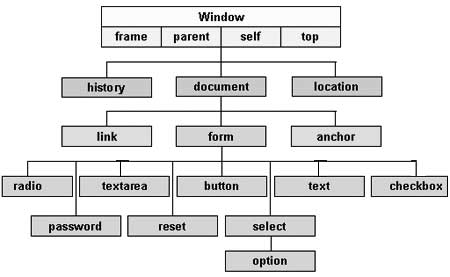
The DOM is a standard object model and programming interface created by the browser when a webpage is loaded. It is essentially your HTML page but in a different format now accessible through a browser based programming interface and language (Javascript). In general, JS can manipulate (get, change, add, delete) any part of the DOM (ie. any part of a page or document).
- Here's a great image of the DOM
- DOM Tree Visualization Example on CodePen
- Try opening the Chrome Developer Console and typing
documentorwindow. What does it return? How does it relate to the DOM image above?
- Try opening the Chrome Developer Console and typing
- JavaScript DOM Tutorial Series (Video Playlist) - A great series of videos introducing the DOM and how to manipulate it with Javascript. It totals 2 hrs in duration but is extremely helpful to understand some aspects of the Javascript language and how it can be used.
- Eloquent Javascript: CH 14 - The Document Object Model
- JS Events and the DOM
Frameworks & Libraries
- What is a framework?
- What is a Library?
Library
A library is a collection of code containing objects, functions, and methods that you can use in an application or project. It can be written in CSS, Javascript, or some combination of both.
Some common libraries: Google Fonts, Animate.css, Draggable.js, masonry.js, p5.js, D3.js, and Three.js.
Framework
A framework can be everything you use in application development. It can consist of both front-end and back-end toolsets. It can be a library, a collection of libraries, a collection of scripts, or any piece software you need to create an application. It's best to think about a framework as something that is mostly ready to use out of the box, but still requires an understanding of the terminal, version control, and the web languages: HTML, CSS, and JS.
Some common frameworks: Bootstrap, W3.CSS, Materialize, Shoelace, React, Express, and Electron Framework.
Evaluating a Library or Framework
There are several questions you might ask yourself when choosing to use an existing library or framework. You typically start by looking at the documentation to compare similar features and components and to see if it does something you would like to incorporate into a project.
- What does it do?
- What's the benefit of using it?
- How do you use it?
- Pros and cons?
- Are there examples to follow?
- Is there a large community?
- Where can I get help?
Resources
- Front-End Case Studies - A great collection of case studies about development tools and practices across the industry.
- The State of JS 2019 - A great resource showing the state of various JS based frameworks.
- Top Bootstrap Alternatives
- Bootstrap Alternatives: The top 36 options in 2020
BREAK - Take 10 min
Front-End Workshop | In Class, 45 mins
In this workshop we will walk through building a filterable student list from scratch. It will use Bootstrap as the front-end framework and vanilla javascript to filter.
References: Figma Design, Github Repo
Goals:
- Learn how to incorporate a front-end library or framework into a project.
- Understand how to structure a document based on the framework used.
- Learn how to utilize Javascript to filter a list of items. In this case student names.
Instructions:
- Create a new project folder called "student-list".
- Create an index.html file inside the folder. This will be your primary document.
- Open Terminal and start a live-server instance inside your project folder.
- Naviagate to the Bootstrap documentation and look for the Starter Template code. Copy and paste it into your index.html file. You should see an empty page that says Hello, World! in your browser automatically as long as live-server is running.
- Add a
divelement with theclass="container"inside yourbodyelement. All your content will go in here. - Below the container div and just ablve the closing body tag, add a
<script>... </script>element. This is where we will put all our Javascript code. - Refer to the Figma Design to see what the page should look like.
- What elements will you need to make your document reflect the design in Figma?
- Tip: Look at the components section of the Bootstrap documentation.
- Once you have the general structure of the page, we can proceed to make it interactive when typing into the search field by using javascript.
- Proceed to implement a filter algorithm as described in class.
Questions / Next Steps
- How do I add more data to the page?
- How do I update the data?
- Where is the data stored and how do I access it?
Resources
- W3 Schools Bootstrap 4 Tutorial
- Bootstrap
- Figma - Signup for a free account with your @colorado.edu email address and apply for a free Education team.
- Bootstrap Design 1.0 (UI Kit) ($12) - A great BS4 UI kit for Figma.
- Javascript Language References
Web Applications
What makes a web application? The modern term "web application" applies to a variety of systems or stacks. Typically, these systems communicate with one or more servers for access to system resources like memory, databases, and cpu or gpu. ie. speed, power, and connectivity. It may have more than one type of client interface. ie. Mobile, desktop, API, or another application.
What are some common types of websites or web applications?
- Static Website - Basic websites, blogs, etc
- Native or Mobile App
- Progressive Web App (PWA) - A responsive mobile website that mimics the behavior of native or mobile apps.
- Single Page App (SPA) - An application that is dynamic and interactive without reloading the entire page.
Resources
- Web Application Architecture - Summary of the components found in various kinds of web apps.
Assignment 4: Digital Legos
Choose one or more libraries or frameworks and make something with it.
Thoughts on how to accomplish this:
- If you have project in mind for your final project or another project, begin to identify what tools you might use to build that project and attempt to work on a piece of it.
- What functionalites does the project need? (Maybe there's a library for it)
- How do you see the project working from the user experience?
- What design elements can you identify and how might they be coded?
- Investigate libraries that seem interesting to you. Assess their capabilities and how you can apply it to a project.
- Begin by looking over examples found in the documentation.
- Look for "getting started" documentation about a library or framework. Work through it and see where it takes you. Google is your best friend.
- Try to be as specific as possible when invesitgating a library or framework. What is your motivation for learning it and what do you want to accomplish with it? Identify some specific uses of it and focus.
- Start simple. Dont try to understand it all. If you copy and paste code from somewhere, copy one line at a time and learn what it does. Then add more code and repeat. It's easier to start simply and build up complex functionlaity than to work the other way.
- Use comments (in JS, HTML, or CSS) to write notes to yourself.
- Work together! Share code, ideas, and libraries you find with eachother.
- Have fun with it!
Make a repository on Github for your project and commit all project files to it. I should be able to clone your project repo and run it in a localhost on my machine to see the same result without changing filenames or folders. Note: Your repo should always include a README.md file with instructions about it's use and what it does.
Deliverable:
- A short 2-4 min video screen capture demonstrating your project running in a local development environment. Be sure to briefly introduce yourself and your project, provide an overview of what you made and how it works. Embed the video into your blog post.
- Include a link to your Github repo for the code written.
-
A brief writeup on your blog about your learning experience.
- What hurdles did you encounter and how did you overcome them?
- What worked and what didn't?
- What new tools did you try?
- How would you explain what you've done to someone that doesn't know anything about web development and the tools used?
Submit a link to your post on Slack #cmstudio by EOD.
Due: Sept 28
Week 6: Data, API's & Connectivity
Sept 28 | Location: Zoom Meeting
Discussion | 20 mins
- Assignment 4 Share
- Questions on projects, tools, languages - HTML, CSS, JS, etc
- Working together
- Agenda
- APIs - What and Why
- API Mashup Session - 30 mins
- Break - 10 mins
- Data - How
- API Workshop - 45 mins
API's
- What is an API?
- What is the purpose of an API?
- How do you use them?
- How do you make your own?
Most importantly, as a designer of the future, what does one need to know to work with APIs?
The best place to start is by looking at what kinds of APIs exist and how they have been used to build products.
Popular APIs
- Google Cloud Platform
- Instagram Platform (API) - Start with Instagram Basic Display API
- Slack
- Youtube
- Soundcloud
- Spotify
- Google Sheets
- New York Times (Dan Shiffman Tutorial)
- Goodreads
- Numbers API
- Wordnik
- Discogs
- Pandora
- NASA
- Marvel Comics
- Yelp
- Uber
- RTD Denver
- US Patent Office (USPTO)
- Voice APIs
- Hardware APIs
API Mashups
What's a mashup? It's an application that utilizes one or more APIs in combination to provide a solution to a problem or ask new questions.
- What is an API Mashup?
- Programmable Web Mashups
- HousingMaps (2005) was the very first Google Maps mashup, created before there was a Google Maps API. It overlaid Craigslist apartment and housing listings on a map, for some 30 US cities plus London.
- We Feel Fine by Jonathan Harris (2006) - New media art project that explores human emotion on a global scale.
- Radiolab: Insomnia Line - Recent episode that explores the use of voice mail to connect with people experiencing insomnia. I thought this was an interesting parallel and accessible form of crowd sourcing data relating to emotional states.
- #Elkbot (2011) / Demo WIP Video - by RJ Duran & Chris Znerold
- INFOGRAPHIC — A History of Modern API Mashups
- TOP 15 MUSIC APIS TO POWER YOUR NEXT MASHUP
- Mapping World Literature with Mapbox by Tess Stevens (C11)
API Based Platforms
These are platforms that utilize APIs in their products. The use of one or more APIs is core to their busoiness model.
- later.com - Instagram Marketing
- Slack Apps - Apps for Slack ecosystem
- Zapier - Connects anything to anything else
Where to Discover APIs
- Public APIs - A collective list of free APIs for use in software and web development.
- Programmable Web - This is a great resource for discovering APIs and learning how to use them.
- Free Public APIs for Developers APIs
- 14 Most Popular Art APIs
- 30+ Most Popular APIs for Web in 2020
- Top 10 Artificial Intelligence APIs for 2020
- Top 50 Most Popular APIs on RapidAPI (2020)
- 6 Interesting APIs to Check Out in 2020
API Mashup Session | Breakout Rooms, 30 mins
In teams, brainstorm a concept or solution that makes use of 2 APIs. Spend some time researching the APIs of interest and brainstorming how they could be used to solve a problem or simply have some fun. Make a list of questions concerning that arise in the process.
Place all your ideas into the shared API Mashup board board in Milanote. Your will need to signup for an account to work in this shared board.
Some things to think about when brainstorming and researching APIs:
At a high level:
- What kind of possibilities emerge when you combine chosen APIs?
- Whats unique to each API? What features does it have?
- How do the APIs chosen complement eachother?
At a lower level:
- What kind of data is available?
- What kind of access is required to make the API work?
- What does your product or website need to ask of a user? What kind of permission? And what does that mean for how the API is used?
When time is up we will come back together and discuss then take a break.
BREAK - Take 10 min
Data
- What is Data?
- How is it represented?
- JSON, CSV, TXT
- How do I make a database?
- What is a database?
- Web applications read/write into databases on servers using data formatted in JSON.
- Web applications communicate using JSON.
Overviews
Building Databases / APIs
I have an idea for a database or API. How do I begin put something together? What tools can I use?
- Building an App the Simple Way: 6 Database-Powered App Builders (2015) - List of tools to build databases.
- 11 Best Tools to Test and Build API Faster
- Strapi - Node.js based headless CMS
- Firebase - Dan Shiffman's Firebase Tutorial - This is a great resource for going deeper into JS, APIs, and related programming topics in general.
- Sheetsu - Makes it easy to access a Google Sheet through an API
- Postman - A great tool for testing all types of requests to/from APIs
- hoppscotch - Similar to Postman but web based
Additional Resources
REST, CRUD HTTP/HTTPS, Ports, URL
- HTTP
- Ports
- List of ports. For example, http uses port 80, https uses port 443.
- CRUD
- URLs
- Whats in a URL? protocol, host, port, resource path, query (Image)
- REST
- What is REST
- What exactly is RESTful programming?
- Understanding And Using REST APIs - Great overview of APIs and using them.

Javascript
- Shiffman - Data, Libraries and APIs - A great section of Dan Shiffmans Programming from A to Z Course covering APIs, data, and p5.js.
- Fetching data from a server - Explains how to use Fetch API (fetch()) vs jQuery.ajax() vs XMLHttpRequest.
- JS Datatypes
- Arrays
- Objects
- Data Type: Objects
- Debugging: Using typeof.
typeof "a string" - Objects Quick Reference
- Javascript Built-In Object Reference
- Eloquent Javascript - This is a great book to learn more about the language and how to use Objects.
- JSON
- JavaScript Object Notation (JSON) - A syntax for storing and exchanging data.
- JSON Syntax
API Workshop | In class, 45 mins
Example 1: Reading data from a Google sheet
Ways to read data from a Google Sheet as your database.
- Method 1: Google Sheets Reader Requires: Node.js
- Method 2: Tabletop.js
- Method 3: Sheetsu - Sheetsu makes it easy to access a Google Sheet through an API.
Example 2: Requesting data from an API
This will use the student list database I setup in Strapi. We will look at how it is setup and how it is pulling data from the database into the page. We will also look at how to make a localhost accessible to anyone on the web using ngrok and localhost.run.
The code is available under week6/student-list-strapi in the class repo.
Tools we will look at:
- JSON Formatter makes it easy to see JSON data in the browser.
- Postman - Allows you to send requests to an API
How to share a database or localhost over the Internet:
Method 1: ngrok - Requires node.js. Sessions limited to 8 hrs.
To use: In Terminal, type ngrok <protocol> <port>. For example, to share a localhost running on port 8080, enter the following. Note this process uses two Terminal windows. Once the connection is established, you will get a public URL to use.
ngrok http 8080
Method 2: localhost.run - No install required. SSH Keys required.
To use: In Terminal, type ssh -R 80:localhost:8080 ssh.localhost.run. For example, to share a localhost running on port 8080, enter the following. Note this process uses two Terminal windows. Once the connection is established, you will get a public URL to use.
ssh -R 80:localhost:8080 ssh.localhost.run
Assignment 5: Connect The Dots
This week I would like you to explore the world of APIs in two ways:
- Design a mashup concept that attempts to solve a problem.
- Choose an API to get familiar with and attempt to make something using it.
Thoughts on how to accomplish this:
- Continue down the path you came up with during class or develop a new approach.
- Spend some time researching APIs that are in line with products or services you are familiar with and use often.
- Research mashups that use an API you are exploring. What was done? Can it be improved?
- What are some of your hobbies and interests? Is there an API for it? If not, what if there was? Whats possible then?
- Write down the names of a bunch of APIs you research and put them into a hat. Stir it around and pull out two. Repeat this process for a time and write down all the combinations. What's interesting?
- Look for recent tutorials that make use of an API you are curious about. Attempt to recreate the workflow.
- Start with simple GET requests and increase the complexity of your queries as you get more familiar with the documentation and API.
- Work through the class examples and develop a workflow that enables you to work with data in a new way. For example, using Google Forms (for user data input) to generate a database (Google Sheet), which you then can pull data from via API.
- Experiment with an API and ask "what if?" questions in the process.
- WORK TOGETHER! Make time to work together outside of class.
- Have fun with it!
Make a repository on Github for your project and commit all project files to it. I should be able to clone your project repo and run it in a localhost on my machine to see the same result without changing filenames or folders. Note: Your repo should always include a README.md file with instructions about it's use and what it does.
Deliverable:
- A blog post describing your ideas and sharing any visuals created or referenced to illustrate the concept. You can record a short video presentation with slides if that helps to share the concept. Embed your video into your blog post.
- Include a link to your Github repo for any code written.
Submit a link to your post on Slack #cmstudio by EOD.
Due: Oct 5
Phase 3: Digital Design Foundations
 Source: 7 Days, 700 Pens: Parametric Design for Customized Conference Swag by Formlabs
In this phase we will look at tools and workflows that support 2D and 3D digital design.
We will approach each topic with simplicity in mind and focus on understanding fundamental concepts. To build advanced skills with the tools we discuss you will need to dedicate time outside of class for further experimentation. We will approach topics in a hands-on workshop format so be prepared to dive in.
The goal of this phase is to learn how to utilize digital design tools to create and represent concepts.
Week 7: Intro to CAD
Oct 5 | Location: Zoom Meeting
Discussion | 30 mins
- Assignment 5 Share
- Questions
- Agenda
- CAD Overview
- Intro to Tinkercad
- Intro to Rhino
- Break - 10 mins
- Intro to Fusion 360
Computer-Aided Design (CAD)
- What is CAD?
- Why is it useful? (Hint: Look around. What do you see? Almost everything in our human built environment is made using an industrialized CAD/CAM process.)
- History of CAD
CAD vs CAM - What's the difference?
(We're working towards CAM in Phase 4: Becoming Physical)
- CAD = Computer-Aided Design (Input: Idea for 3D model; Output: 3D model and/or instructions for CAM.)
- CAM = Computer-Aided Manufacturing (Input: Toolpath file / machine code; Output: Physical Object)
CAD Tools
- 2D - Adobe Illustrator, Adobe Photoshop, etc
- 3D - Fusion 360, Rhino, Tinkercad, Autocad, Inventor, Solidworks, Blender, Cinema4D, etc
File Formats
- 2D
- Raster - JPG, PNG, TIFF
- Vector - AI, EPS, DXF, SVG, PDF
- 3D - OBJ, STL, STEP, IGES, GLTF
3D Meshes
A polygon mesh is a collection of vertices, edges and faces that defines the shape of a polyhedral object in 3D computer graphics and solid modeling. The faces usually consist of triangles (triangle mesh), quadrilaterals (quads), or other simple convex polygons (n-gons), since this simplifies rendering, but may also be more generally composed of concave polygons, or even polygons with holes.
Source: Wikipedia
Besides designing a 3D model directly in CAD, what other ways can you get a 3D model or mesh?
- Downloading a model from Thingiverse
- 3D Scanning - Structure Sensor 3D Scanner
- Photogrammetry - Metashape Pro
- Data Driven - Microscape, Tutorial on making 3D printed maps
- Algorithmic / Generative - Nervous System, Form+Code in Design, Art, and Architecture
- fMRI, CT (Medical Imaging) - 3D print of my brain and skull from MRI data
- Confocal, etc (Biological Imaging) - Imaris
Utilities
These tools help you easily view 3d models (stl / meshes).
Typical Digital Design to Fabrication Workflow
Step 1: Design with one or more CAD tools for the desired production method(s). For instance, laser cutting requires 2D vector or raster artwork and 3d printing requires a 3D model.
Step 2: Fabricate by hand or machine or some combination of both. Return to step 1 and repeat as needed.
- Hand: - cut, carve, bend, sand, etc
- Manual Machines - Mill, Lathe, Saw, Drill, etc
- Computer Numerically Controlled (CNC) Machines - CNC Mill, CNC Router, 3D Printer, Laser Cutter, Plasma Cutter, Water Jet Cutter, etc
In general, most workflows consist of a series of steps where specific tools and knowledge are put into action to complete the step and move to the next step in the process.
In terms of digital to physical workflows, we're always dealing with data in some form / file format. Its good practice to get familiar with input and output formats for any CAD tool you work with because you then know what the tool is capable of and how other tools can interface with it. Most CAD environments can work with a variety of 3D file formats such as STL, OBJ, STEP, and many others.
Workshops
We will survey a few different CAD tools with the goal of understanding some of the similarities and differences in workflow. There is no single CAD tool that does anything and everything. The most power workflow I can suggest comes from working with a variety of 2D/3D tools to realize an idea. As with most tools we encounter as designers, each one has a learning curve with some aspects being steeper than others, but with practice, they will become easier to use. I highly recommend spending the time this week exploring the learning resources available below.
- Intro to Tinkercad
- Interface / Navigation
- Drawing Geometry
- Modes - 3D Design, Blocks, Bricks
- Importing / Exporting
- Intro to Rhino Workshop
- Intro to Fusion 360 Workshop
Resources
Rhino Resources
- Rhino Tutorials
- Think Parametric: Rhino 101 - Fundamentals of 3D Modeling
- Plethora Project
- Rhino 6 Essential Training - Linkedin Learning Login Required
- Learning Rhino 6 for Mac - Linkedin Learning Login Required
- Create a Pattern on Vase Surface - Neat beginner tutorial showing how to apply a pattern to a surface.
- Modeling an Espresso Cup and 3D Print with Shapeways - A great design to fab workflow demonstrating how to take a model created in Rhino and upload to Shapeways to evaluate material options, print cost, and 3D print.
- Step by Step Tutorial of Modeling a Mug - A great beginner tutorial walking through modeling a mug from references images. If you are completely lost with Rhino, start here and work through the whole tutorial.
Fusion Resources
- Fusion 360 Gallery
- Fusion 360 Manual
- Learn Fusion 360 in 60 Mins
- Fusion 360 Design Academy
- Fusion 360 Adoption Portal
- Fusion 360 Forum - Need help? Check here.
- Tutorials
- Arduino UNO Enclosure Tutorial (Arduino UNO Model, Arduino Drawing), Shorter version
- Parameter Driven Project Enclosure
- Bookshelf Tutorial - Watch to get a good walkthrough of sketching basics.
- Making Parametric Models in Fusion 360
- Easy Snap Fit Cases
- Udemy: Product Design in Autodesk Fusion 360 from idea to prototype
- Udemy: Designing for 3D Printing with Fusion 360

Assignment 6: From Sketch to Model
This week I would like you to explore CAD tools by creating a 3D model from a sketch.
Thoughts on how to accomplish this:
- Spend time sketching out ideas on paper or making something physically with paper, cardboard, or other materials. Attempt to translate the shapes you put together into 3d in CAD.
- Think in terms of problems (as design opportunies) and solutions. Where do you see a need for making something using a CAD tool?
- Spend time looking through the resources listed above. There are several tutorials that can be worked through.
- Work through Linkedin Learning lessons and focus on applying a few tools or techniques to create your model.
- Inspect models you find and attempt to recreate the model in your CAD tool of choice.
- If you use a tutorial to guide the design process, make it a point to deviate from the instructions to make the design your own.
- Simplify your design to make use of basic shapes you know how to manipulate. Then increase the fidelity.
- Measure something real and physical to get the dimensions. Attempt to draw something that matches the specifications.
- Read the documentation or manual for the tool.
- WORK TOGETHER! Make time to work together outside of class and share modeling tips.
- Have fun with it!
Deliverable:
-
A blog post describing your design process from sketch to 3D model.
- What did you design and why?
- What challenges did you face while making your model?
- What resources did you use?
-
Export a mesh (STL File) of your model and upload it to Sketchfab (You will need to make an account). Once uploaded to Sketchfab, embed your uploaded model into your blog post. Here's a tutorial about how to do this. This is the same as embedding a Youtube video into a blog post, but with a 3D viewer window containing your model, which you can manipulate and even visualize in VR! Cool eh!? Check out these examples from past students.
- Be sure to include any screenshots and visuals created or referenced to illustrate your ideas. You can record a short video presentation or process walkthrough if that helps to share your project. Embed your video into your blog post.
Submit a link to your post on Slack #cmstudio by EOD.
Due: Oct 12
Week 8: Parametric Design
Oct 12 | Location: Zoom Meeting
- Assignment 6 Share
- It's great to see the variety of approaches to this project.
- Leveraging available resources is key for working quickly on a concept while ramping up on a new skillset or toolset.
- Export FBX files to retain basic color information when importing into Sketchfab. Textures can not be exported in any format.
- Agenda
- Parametric Modeling vs Direct Modeling
- Examples of Parametric Design
- Break
- Fusion 360 Work Session
- Rhino & Intro to Grasshopper Work Session? - How many people experimented with Rhino?
Parametric Modeling vs Direct Modeling
Parametric Modeling
Parametric Modeling (aka Parametric Design) is a process based on algorithmic thinking that enables the expression of parameters and rules / constraints that, together, define, encode and clarify the relationship between design intent and design response. This approach follows a step by step process and may require careful planning to design a model.
Parametric modeling is extremely useful for products that are driven by dimensions—think standard office fare like desks and shelving or tools that can vary in size. With the parametric approach, engineers can quickly and easily create different configurations of their designs.
Direct Modeling
Direct modeling empowers you to define and capture geometry quickly, without spending time worrying about features, constraints, and original design intent. It is often compared to working with modeling clay. Simply push and pull the geometry until you arrive at just the shape you want.
In direct modeling, designers can push and pull on their model to change it. One benefit of this capability is the ease with which designs can be altered, enabling rapid iteration and prototyping. For that reason, direct modeling has found a niche in the world of industrial design, where fluid curves and bold aesthetics play a big role.
So...what is Rhino and Fusion 360?
Fusion 360
- Parametric Modeling
- History-based
- Does not have a node-based visual editor similar to Grasshipper built-in to Fusion (yet). The closest solution would be to use Dynamo Studio and plugin Dynamo for Autodesk® Fusion 360™.
Rhino
- Direct Modeling
- History-free, unless it's enabled for specific operations. See History.
- Has node-based visual editor Grasshopper (aka Explicit-history) built-in. Through Grasshopper, parametric design is possible, taking form as a "definition" which consists of the design history and thereby the object.
Others
In the past few years, many other types of CAD-like hybrid environments have come to term such as Onshape, a CAD based prodcut design platform.
Similarly, node-based editors or plugins for CAD environments offer designers open-source and accessible alternatives to Grasshopper and Dynamo. Tools such as Sverchok and Sorcar for Blender are paving the way.
References:
- Parametric Design (Wikipedia),
- What’s the Difference Between Parametric and Direct Modeling?
- Introduction Grasshopper and History
- Parametric vs Direct Modeling
- What is Design Intent?
Examples
What types of objects can be considered "parametric"?
Just about anything really. Some examples: Cups, Vases, Pitchers, Bottles, Bells, Bowls, Clothing, Furniture, Lighting, Cars, Personal Items, Buildings!... what else?
- Parametric Design Examples
- CW&T 100 Dropped Pendant Lights (2017)
- Formlabs Digital Factory Pens (2017)
- Gillette Uses 3D Printing to Unlock Consumer Personalization (2018)
- #100bottles100days by Anna Whitehouse - "Touch Clay Everyday"
- Nervous System Design Apps, Kinematics @ Home
- WOVNS, Processing Tutorial
- Opendesk
- Mercedes Grille Patterns
Fusion 360 Work Session
Open your projects for this week and lets look at issues you ran into. What gave you trouble?
Assignment 7: Mass Customization
Design a parametric model and produce 3 variations that meet the needs of 3 different users.
For example, 3 different chairs made to fit 3 sizes of human bodies - small, medium, large. The chairs all posses the same characteristics except the size.
Thoughts on how to accomplish this:
- Spend time sketching out ideas on paper or making something physically with paper, cardboard, or other materials. Attempt to translate the shapes you put together into 3D in CAD.
- Iterate on your previous project. How can you make the model fully parametric? What parts of your model need to be parametric?
- Hint: If you are using Fusion 360, you will likely want to make use of Constraints and Dimensions in your sketches and entering values into the Parameters Window. If you are not using Fusion 360, how can you make your model parametric? What's your approach?
- Measure something real and physical to get the dimensions. Attempt to draw something that matches the specifications.
- WORK TOGETHER! Make time to work together outside of class and share modeling tips.
- Have fun with it!
Deliverable:
-
A blog post describing your design process from sketch to 3D model.
- What did you design and why?
- What makes your design parametric? ie. what are the parameters of your design?
- What challenges did you face while making your model?
- What resources did you use?
-
Export a 3D model file (STL or FBX) and upload it to Sketchfab.
- Be sure to include any screenshots and visuals created or referenced to illustrate your ideas. You can record a short video presentation or process walkthrough if that helps to share your project. Embed your video into your blog post.
Submit a link to your post on Slack #cmstudio by EOD.
Due: Oct 19
Week 9: Visualizing Products
Oct 19 | Location: Zoom Meeting
- Upcoming
- Phase 4: Next week we will start looking at digital fabrication tools and workflows.
- Week 12 (Nov 9) - Final project Proposal Due
- Assignment 7 Share
- What did you make and how did you make it parametric?
- Questions
- Agenda
- Representing Concepts
- Questions Concerning the Visualization Process
- Examples
- General Workflow
- Workshop: Adobe Dimension
Representing Concepts
Visualizing a product be it large or small, digital or physical, is an involved process that requires constant iteration and feedback from stakeholders. For our purposes we will begin by exploring some questions that arise in the process of designing products.
Here are a few types I have encountered. I deal with several of these forms of representation everyday. What other forms of visualization can you name?
- Digital Designs
- Digital Mockups
- Digital Wireframes
- Line Drawings
- Physical Prototypes
- Animation
- Schematics
Questions Concerning the Visualization Process
What digital and/or physical representations need to be used to effectively communicate design intent?
- What is your idea? How do you imagine it to be?
- What kind of materials does your design or idea require?
- Is it physical or digital or both?
- Who is your audience?
- Who will be viewing the images and making a decision through it?
- What meaning do I wish to convey through an image or animation?
- How realistic does my image need to be? Do I need a render or a photo?
- How much time do I have to make a render?
- What kind of fidelity is required?
- Does it move or require showing functionality through animation or diagrams?
Examples
We will take a look at some recent examples of projects using different approaches to visualize a concepts.
General Workflow
In this class we are interested in assembling workflows that produce a result. Sometimes the workflow you use to accomplish a task is possible within a single program or it's constructed through a series of operations provided by several programs. Below is a general workflow for visualizing a product.
- Create design files in 2D or 3D. These are your design assets.
- Export models in a 3D format that allow for applying color, materials, textures to individual components (ie. FBX, STEP, OBJ, STL).
- Create 3D scene with assets, environment, and lighting in render tool of choice. In some cases, the CAD environment provides basic rendering tools.
- Make test renders or preview results with lower quality settings. High quality renders take longer and use more resources. Expect to wait.
- Repeat the process to produce quality images that can be further processed or composited.
BREAK
Workshop: Adobe Dimension | In Class, 45 mins
In this workshop we will walk through designing a scene with objects in it. We will then explore environment, lighting, materials, and rendering.
Goals:
- Get familar with the Adobe Dimension interface and scenes
- Get familiar with environment, camera, models, and materials
- Get familiar with basic render settings
Resources
Adobe Dimension
- Getting Started with Adobe Dimension - Official Youtube playlist with tutorials showing how to use the program. Start here.
- File Formats (Importing 3D Models)
- 3D Model Formats - OBJ, FBX, STL, SKP
- Material Formats - MDL, SBS, SBSAR
- Tutorials by Dansky - Playlist of tutorials showing how to use Dimension in various workflows.
- Create Easy 3D Illustrations in Adobe Dimension - Onboarding Tutorial - Great intro tutorial showing how to use Dimension and XD in a workflow.
- Creating packaging and prototypes with Adobe Dimension
Fusion 360
Assignment 8: Product Visualization
Using Adobe Dimension, generate 3 renders of a product or design concept you created in CAD.
What does this mean? This could be 3 unique instances of a single design concept (parametric design) or it could be 3 different visual representations of a single design instance, paying special attention to exploring different environments, lighting configurations, and materials to create different moods.
Project Details:
The images you produce will be shared on Instagram @criticalmakingstudio. They will likely be reshared on the official CMCI Studio (@cmci.studio) account as well.
- Canvas Sizes - Choose story or square formats. Story size can be cropped to square.
- Instagram Story - 1080 x 1920 px
- Instagram Square - 1080 x 1080 px
- Project Title
- Give your project a title and short description. This will be included in each post.
- Your Instagram username
Thoughts on how to accomplish this:
- Spend some time working with Adobe Dimension to get familiar with the interface and workflow. Look through some of the Adobe tutorials to start.
- Export different model formats form your CAD tool. Start with FBX and STL files. Then import your models into Dimension. Find a workflow that agrees with your models.
- Read the User Guide. Read about Supported file types and Materials.
- Note: Depending on your computer hardware, producing renders can take awhile. Plan ahead to make sure you have time to produce the best quality renders you can.
- WORK TOGETHER! Make time to work together outside of class and share rendering tips.
- Have fun with it!
Deliverable:
-
A blog post describing your process beginning with exporting from CAD tool to setting up your renders to producing final images.
- What kind of workflow did you come up with?
- What worked and what didn't?
- What challenges did you face?
- What resources did you use?
-
Produce 3 high quality images of product concepts you designed. Include these images in your blog post with a brief description for each image. Place your images into the Milanote board linked below as well.
-
You can record a short video presentation or process walkthrough if that helps to share your project. Embed your video into your blog post.
Submit a link to your post on Slack #cmstudio by EOD.
Due: Oct 26
Phase 4: Becoming Physical
 Source: Laser Cut Parametric Triangles by RJ Duran
In this phase we will look at tools and workflows used in digital fabrication.
We will approach each topic with simplicity in mind and focus on understanding fundamental concepts. To build advanced skills with the tools we discuss you will need to dedicate time outside of class for further experimentation. We will approach topics in a hands-on workshop format so be prepared to dive in.
The goal of this phase is to learn how to utilize digital fabrication tools to create physical objects from digital designs.
Week 10: No Class
Oct 26
Class canceled due to weather.
Week 11: Intro to Digital Fabrication
Nov 2 | Location: Zoom Meeting
- Updates
- Projects - A page dedicated to past proejcts done in Critical Making courses.
- Final Project Proposal - Due: Monday Nov 9 by EOD
- Assignment 8 Share
- Milanote Board
- Questions
- Agenda
- Overview
- Finding Inspiration
- Outsourcing Fabrication
- BREAK
- Digital Fabrication Worklfows
- 3D Printing
- Laser Cutting
- Vinyl Cutting
Digital Fabrication
Digital fabrication is a type of manufacturing process where the machine used is controlled by a computer. The most common forms of digital fabrication are CNC Machining, Laser Cutting, and 3D Printing. (Source: Open Desk)
CAD & CAM
- CAD = Computer-Aided Design
- Input: Idea for 3D model
- Output: 3D model and instructions for CAM
- CAM = Computer-Aided Manufacturing
- Input: Toolpath file to control machine process
- Output: Physical object
Where to Begin
In general, every digital fabrication process works in a similar way:
A digital file is created (ie. toolpath) to deliver instructions to a machine (ie. fabrication method) engaging with a piece of material (ie. stock) to produce a specific result.
When encountering these tools, I find most people begin in one of the following groups with the following question:
- Idea - I have an idea. Which digitial fabrication tool(s) enable me to make it?
- Process - I am interested in a digital fabrication tool or process. What can I make?
Finding Inspiration
- Digital Fabrication on Pintrest
- Thingiverse
- 2020 Best Sites for Free STL Files & 3D Printer Models
- Ultimaker Applications
- Formlabs Blog - They feature lots of interesting projects and case studies.
Projects
- Creative Applications
- Autodesk Pier 9 Residency Projects - Wayback Machine link from Dec 2018
- @HardwareUX
- @pdesign101
- Embla Candles / Instagram - Fun brand utilizing 3d printing to make candles.
- Uppgradera - Upgraded IKEA experiences
- 3D Printed Arduino CNC Drawing Machine by DIY Machines - I'm interested in building one of these. Similar to the Axidraw. #axidraw to see examples.
- CNC Wood Joinery
- Dom Riccobene - CNC Wizard
- Bantam Tools Podcast: The Edge - A great podcast about design and technology.
- The 3D Printing Handbook
Outsourcing Fabrication
- 3D Hubs - CNC Machining, 3D Printing, Injection Molding
- Shapeways - 3D Printing
- Fictiv - CNC Machining, 3D Printing
BREAK
Workshop: Digital Fabrication Workflows
We will spend the rest of the time getting familiar with the software workflows for 3D printing, laser cutting, and vinyl cutting.
Remember: To get something 3D printed or laser cut at the Idea Forge, you need to follow the instructions for 3D Printing & Laser Cutting Fabrication Requests.
3D Printing with Ultimaker 3
- Save print ready STL from CAD
- Load STL file into Cura
- Choose PLA material for Extruder 1 and PVA for Extruder 2 (If using support material)
- Choose a print profile (aka Layer Height: Start with Fast or Normal options)
- Choose an infill (Density)
- Save GCODE file and copy to USB drive to insert into Ultimaker 3
Things to consider:
- Material - PLA and ABS are the most common materials but there are many others out there that work with FDM machines like the Ultimaker. If you are outsourcing a print job, you will need to investigate the material options provided by the print service. Outsourcing has the advantage of printing with a variety of machines and materials.
- Scale - How large of a print do you need? Can your object be printed in parts and assembled?
- Printability - Does your model need to be printed? Is this the best method? Is there another method better suited for the task?
- Slicing tools like Cura convert a 3D mesh (STL) into GCODE to run the printer. This is not to be confused with the Autodesk tool - Slicer for Fusion 360. That is a tool for converting 3D models into 2D pieces that can be cut on a laser cutter with 2D sheet material to assemble into a 3D model.
Additional resources for printing can be found under Design for 3D Printing.
Laser Cutting
- Make a 2D vector graphic design file in Illustrator
- Prepare layout in file. Match the size of material you wish to cut and the machine you wish to use.
- Submit laser cutting fabrication request at Idea Forge.
Vinyl Cutting
-
Make a 2D vector graphic design file in Illustrator
- Define your Artboard size to be the dimensions available within the left and right margins of the rollers. The width will be shown on the vinyl cutter display once you load material.
-
Configure print settings in Window > Extensions > Roland CutStudio
- Select GX-24
-
Load material into machine
- Outline text/shapes
- Print/Cut
Assignment 9: Final Project Proposal
Submit a Final Project Proposal by EOD.
Due: Nov 9
Phase 5: Final Project
Week 12: Final Project
Nov 9 | Location: Zoom Meeting
Meeting Signup: https://calendly.com/rjduran
Week 13: Final Project
Nov 16 | Location: Zoom Meeting
Meeting Signup: https://calendly.com/rjduran
Week 14: Final Project
Nov 23 | Location: Zoom Meeting
Meeting Signup: https://calendly.com/rjduran
Week 15: Final Project
Nov 30 | Location: Zoom Meeting
Meeting Signup: https://calendly.com/rjduran
Week 16: Final Project Presentations
Dec 7 | Location: Zoom Meeting
- Last Day of Class
- Final Project Presentations
- Final Project Documentation Due by Weds Dec 9th, 2020
Final Project Documentation
- 3D Printed Car: Final Form by Mark Banzhoff
- A Bike For a Lifetime by Mateo Barroetavena
- Drynamic Bag Creation by Cal Brackin
- Novel breast MRI system and the B.R.A.V.E. by Arielle Castro
- RuffGuy Dog Apparel by Karlie Cronin
- Web Portfolio Design Final Project by Hudson Fega
- Design Portfolio from Scratch by Bella Fidjeland
- The Ultrasonic Selfie Stick by Caleb Hammel
- All Your Holiday Needs in a Box! by Natalie Jackson
- Chameleon Prosthetics by Cody King
- I Couldn’t Find the Perfect Commuter Backpack, So I Built One. by Heather Kraft
- Welcome to Stems: A Site for Plant Lovers by Katie Kreider
- HM Designs Website Portfolio by Haley Mordini
- Home Made Hand Soap by Mye Ponrattanasiri
- Color Me In: An Interactive Exploration of Abstraction and Play by Devva Saunders
- Beatbox to Real Drums by Max Vecchitto
- Brown Recluse on the Big Screen by Jacque Walo
- Chinese Moon-shaped Fan by Renee (Yuan) Zhuang